Deploying a containerized static site on Vercel
Nginx Config:
Server block:
The configuration in this document is written to serve a containerized application with local port mapping on PORT :8080 -- as well as :80 when deployed to Vercel.
The following two lines specify where Nginx is going to serve your static web-app from.
root /usr/share/nginx/html;
index index.html;
In this example, I've pre-built a little web-app that is pre-rendering dynamic data at build time in order to achieve SSG. Afterwards, I just copied the build directory over to this new repo. To keep the scope of this write-up small, I won't really get too deep on the build process.
absolute_redirect off
In a container-based application, your Nginx server is configured to manage incoming requests.
If we had a multi-service architecture, we could setup Nginx for reverse-proxying and distribute requests internally to each of your containerized apps/services, e.g., the front end and a backend.
When the absolute_redirect directive is turned OFF, Nginx will send back only the relative path ----> /blogs/blog-post-1 while letting the browser resolve the origin domain.
e.g, Vercel.com/app-name/blogs/blog-post-1
As a default, Nginx is configured to have the absolute_redirect directive set to: ON.
If we left it that way, there would be a few weird problems because Nginx will build a new URL out of three pieces of inferred information.
- The Scheme (http)
- Host Header (app-name.vercel.app)
- The Port (8080)
Vercel terminates TLS at their edge network when requests are made to our container; so, internally Nginx would infer that the entire website must be HTTP.
Nginx will also append the port the URL -- Each time a user requests an end-point like /blogs or /blogs/blog-post-1 - Nginx would re-direct the user to something like:
http://app-name.vercel.app:8080/blogs/blog-post-1
That URL doesn't exist outside of the internal container environment and creates a strange user-experience.
Location Assets Block:
Vercel & Browser Cache
As you would guess, a containerized app isn't an effective way to utilize Vercel's CDN. Normally if you weren't trying to overly complicate your little static site like I am, you'd deploy directly on Vercel to take advantage of that built-in feature.
*Vercel's CDN caches your content (including pages, API responses, and static assets) in data centers around the world, closer to your users than your origin server.
When someone requests cached content, Vercel serves it from the nearest region, cutting latency, reducing load on your origin, and making your site feel faster everywhere.*
In a container based app, Vercel routes all traffic to the container itself.
To benefit from the Vercel CDN, we have to add some additional HTTP headers in the Nginx config file. Without these headers, users will experience cold-starts every time they visit our app, which basically means, the container will need time to boot up on each request.
Another detraction is that you would eventually hit a Vercel usage limit that throttles the entire account; which disrupts any other applications hosted on the platform. No bueno!
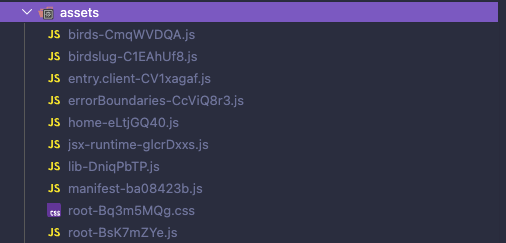
Compiled Javascript, CSS & Image content
location ^~ /assets/ {
        try_files $uri =404;
        add_header Cache-Control "public, max-age=31536000, immutable";
        add_header Vercel-CDN-Cache-Control "public, max-age=31536000";
    }
Both headers in this block are set to have a max-age of one year.
When you re-build your application, the assets/ directory will generate brand new unique files. Even tho the user may have previous cache data that relates to an older file, it won't matter as each subsequent build, distributes new content to the user untracked in their cache.
Location / Block:
try_files $uri $uri/index.html =404;
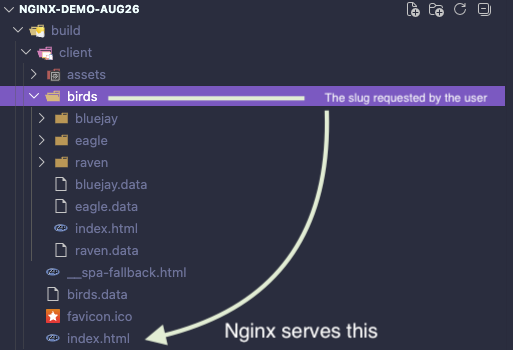
If you look in your build directory, Nginx will match the uri to the directory name, and the index.html file at that level, else 404.
On redeployments, Vercel wipes its CDN cache data, so on each deploy, a new version can be cached for the user until our next release, or the year has lapsed.
In the browser, we would want the user to be able to access our newest deployment, so we set the max-age to zero.
Website Routing / Pages
location / {
        try_files $uri $uri/index.html =404;
        add_header Cache-Control "public, max-age=0, must-revalidate";
        add_header Vercel-CDN-Cache-Control "public, max-age=31536000";
    }
The Browser cache will give users faster load times for contents/routes that haven't changed. So while we may re-build and deploy this application periodically, the cache will remain consistent.
Even on a rollback, the cache is still sitting their dormant, so users who have previous experience with your app still benefit from faster load times.
Testing
To validate that this worked, once you've deployed your app to Vercel, hit it with a curl request and watch it cache your deployment in real time.
curl -sI https://vercel-container-ten.vercel.app/ | grep -i x-vercel-cache
It will respond back with MISS at first, and then HIT on the second request.
Location = /index.html Block:
The last location block indicates that if someone tries to type in index.html literally in the search bar, that the app will default back to / route, which is what they would have wanted anyways.
server {
    listen 8080;
    listen 80;
    server_name localhost;

    root /usr/share/nginx/html;
    index index.html;

    absolute_redirect off;

    location ^~ /assets/ {
        try_files $uri =404;
        add_header Cache-Control "public, max-age=31536000, immutable";
        add_header Vercel-CDN-Cache-Control "public, max-age=31536000";
    }

    location / {
        try_files $uri $uri/index.html =404;
        add_header Cache-Control "public, max-age=0, must-revalidate";
        add_header Vercel-CDN-Cache-Control "public, max-age=31536000";
    }

    location = /index.html {
        return 301 /;
    }
}
Docker Files
The Nginx config is the meat of this process, so let's get into what you're adding into your dockerfile(s), yes more than one.
- Select your base image
- Copy the nginx conf file we just created into the assumed location that nginx expects
- Copy your pre-built app into the location that nginx serves content from
- Since it's a container, expose it internally on port 8080
- Run
nginx -t, which just checks for errors in your nginx config file.
FROM nginx:1.27-alpine

COPY nginx.conf /etc/nginx/conf.d/default.conf

COPY build/client/ /usr/share/nginx/html/

EXPOSE 8080

RUN nginx -t
Vercel Dockerfile
In a Vercel deployment, you provide a second Dockerfile either called, Containerfile.vercel, or Dockerfile.vercel - I preferred container file to differentiate them more obviously.
FROM nginx:1.27-alpine

COPY nginx.conf /etc/nginx/conf.d/default.conf

COPY build/client/ /usr/share/nginx/html/

EXPOSE 80

RUN nginx -t
These are the exact same, you just expose Vercel on port 80.
Deploy it!
To deploy on Vercel, all you need to do is push this bad boy to Github and sync your repo with your Vercel account. That's literally it.
Look at this tiny, beautiful, maintainable repo - chef's kiss
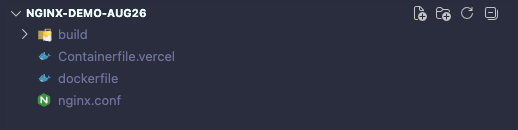
and the Cache test.

Pre-built app
To cover my bases, I wanted to showcase the react router config file as well so you can see how minimal it is. Surely you can serve a static site however you want, but I like React, and often I pre-build dynamic end-points before serving statically.
import type { Config } from "@react-router/dev/config";

export default {
  appDirectory: "app",
  ssr: false,
  async prerender() {
    const res = await fetch("http://localhost:3000/api/v1/birds")
    const birds: string[] = await res.json()
    return ["/", "/birds", ...birds.map((b) => `/birds/${b.toLowerCase()}`)]
  },
} satisfies Config;
If this was an SSR app you'd probably have something like this:
import type { Config } from "@react-router/dev/config";

export default {
  appDirectory: "app",
  ssr: true,
  routeDiscovery: { mode: "initial" },
  async prerender() {
    const res = await fetch("http://localhost:3000/api/v1/birds")
    const birds: string[] = await res.json()
    return ["/", "/birds", ...birds.map((b) => `/birds/${b.toLowerCase()}`)]
  },
} satisfies Config;
Same-same but different. Flip SSR to true, and add the route discovery property if you want to load every route, asset all at once when the user visits your page. By default it's set as "lazy" which for an SSR app just means that it loads each slug as it's requested to maintain performance.